Click a table on the floor plan. Its settings open in the panel on the right, together with everyone sitting at it.
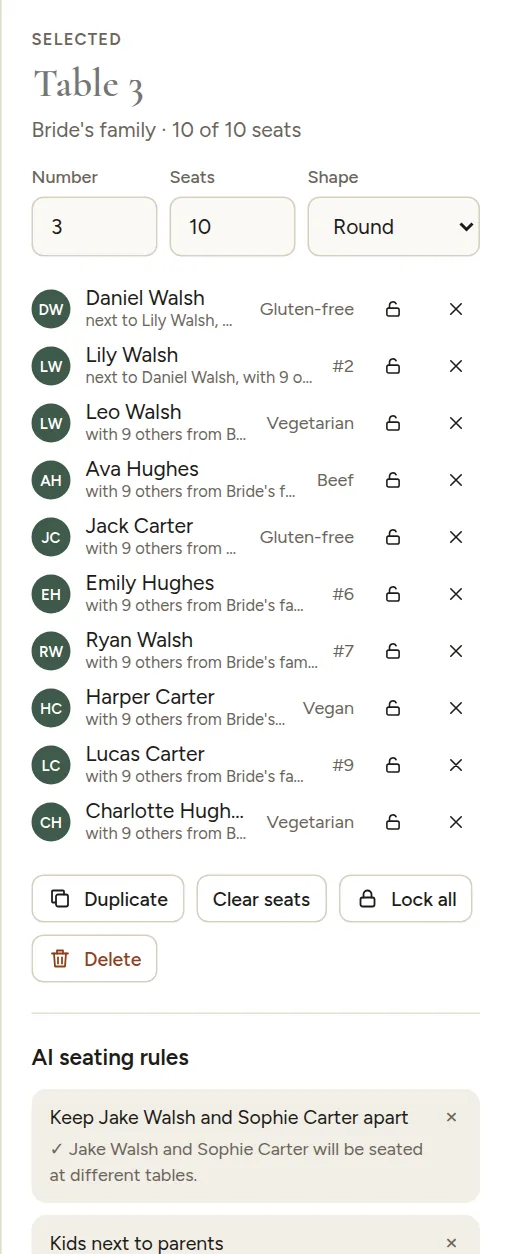
- Table name: give tables names ("Lisbon", "Sunflower", "The Carters") if you like. Without a name, it is "Table 4". The print pack can show the number, the name or both.
- Number: the table's number on the chart and table cards.
- Seats: how many chairs it has. The seats around the table update as you type.
- Shape: Round, Long or Head table.
Guests at the table
Every guest at the table is listed with their meal and why they sit there. From here you can:
- Lock a guest to their seat so AI never moves them. See Lock seats.
- Remove a guest from the table with the x.
Buttons
- Duplicate adds another table just like this one.
- Clear seats sends everyone at this table back to the unseated list.
- Lock all locks everyone at this table.
- Delete removes the table. Its guests go back to the unseated list. You can also press Delete on your keyboard.