You do not need to retype anything. Open the Guests tab and click Import guests (or Import in the guest list on the Floor plan tab), then choose where your list comes from.
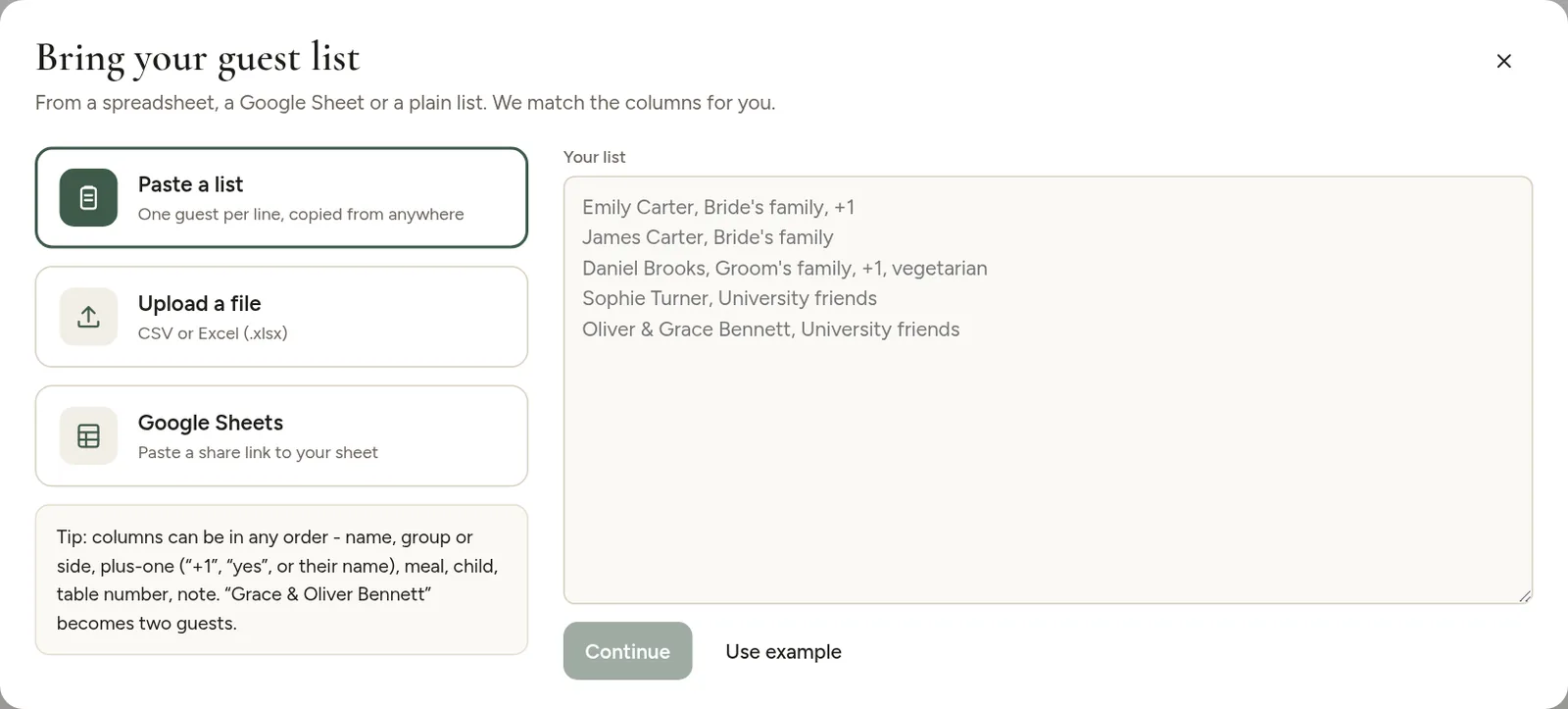
- Paste a list: copy names from an email, a note or a spreadsheet. See Paste a guest list.
- Upload a file: a CSV or Excel file. See Import from Excel or CSV.
- Google Sheets: paste the link to your sheet. See Import from Google Sheets.
Whichever you choose, the next step shows a preview where you check which column is which, and then all guests are added at once.
What gets recognized
- Names: one full-name column, or separate first and last name columns.
- Couples on one line: "Grace & Oliver Bennett" becomes two guests who sit together.
- Plus-ones: "+1" after a name, "yes" in a plus-one column, or the partner's name in that column.
- Groups or sides: "Bride's family", "Work friends".
- Meal choices, notes, children and even table numbers.
Adding more guests later
Importing again adds the new guests to your list, and marks names that are already there as possible duplicates. To start over, tick Replace my current guests before you import. To add one person by hand, use Add guest in the Guests tab.
Tip: a Group or Side column makes seating much easier, both by hand and with AI. It is worth adding before you import.