The preview in the Print pack shows each piece exactly as it prints. Use the zoom controls in its bottom right corner:
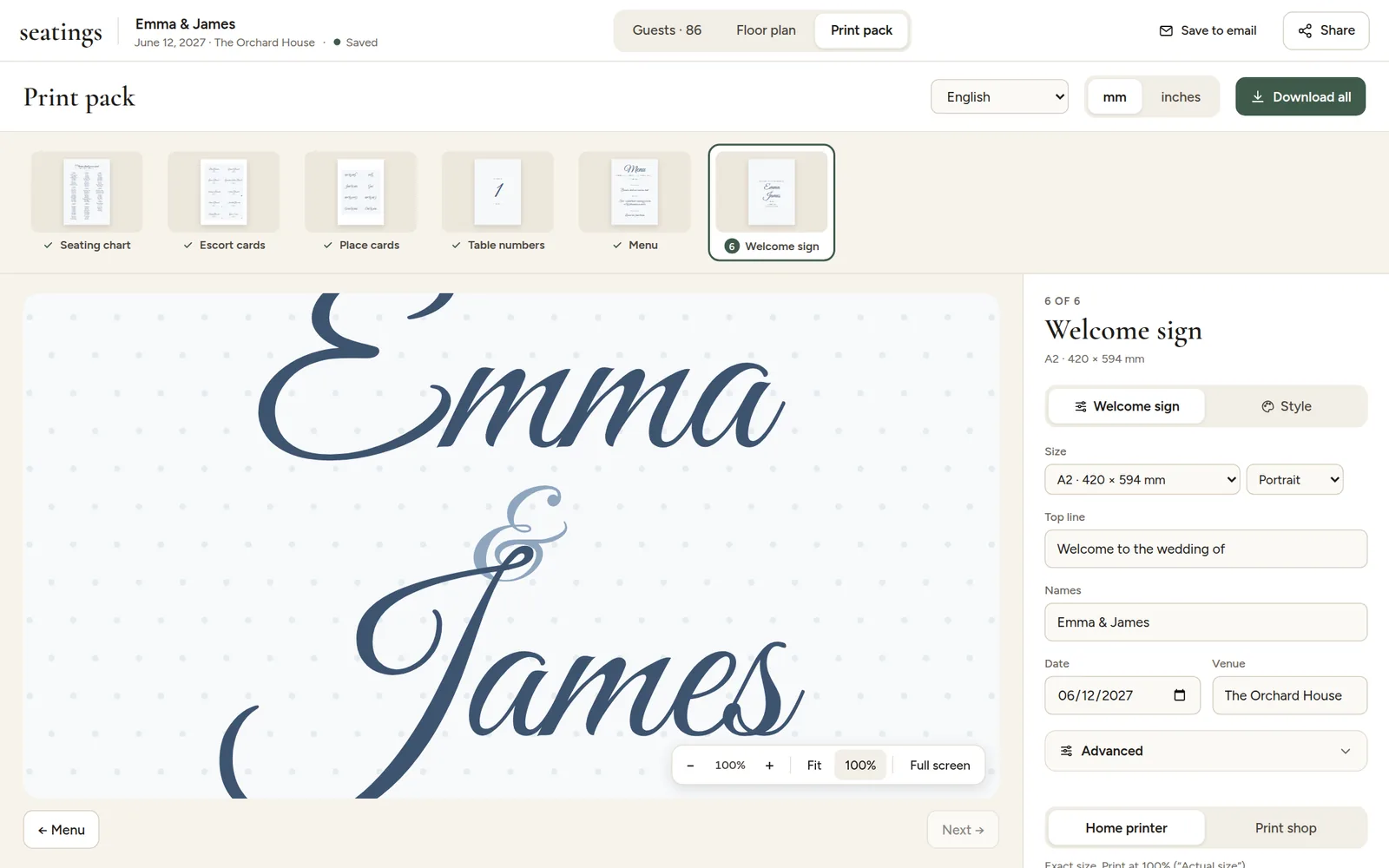
- - and + zoom out and in. The percentage shows the size compared with the real print.
- Fit shows the whole page.
- 100% shows the real printed size, the best way to judge whether text is big enough.
- Full screen uses the whole window. Press Esc to leave.
You can also zoom with Ctrl + scroll (Cmd + scroll on a Mac) at the spot you want to see, double-click to zoom in and out, and drag to move around a zoomed page. Keyboard: + and -, 0 for Fit, 1 for 100%, F for full screen. On a phone or tablet, pinch with two fingers to zoom and drag with one finger to move around.
Cards that come several to a sheet have more than one page: use the page arrows under the preview.