Guests reply on a page that matches your print pack. Every answer lands in your guest list: who is coming, who is not, meal choices, allergies and the names of plus-ones. People who cannot come leave the seating chart by themselves. RSVP is free.
Turn on RSVP
Open the Guests tab and click Invite guests (RSVP). Every option is on one screen, with a short explanation under each, and an on/off switch at the top. Choose your options, then turn it on. You can change any option later in the same place.
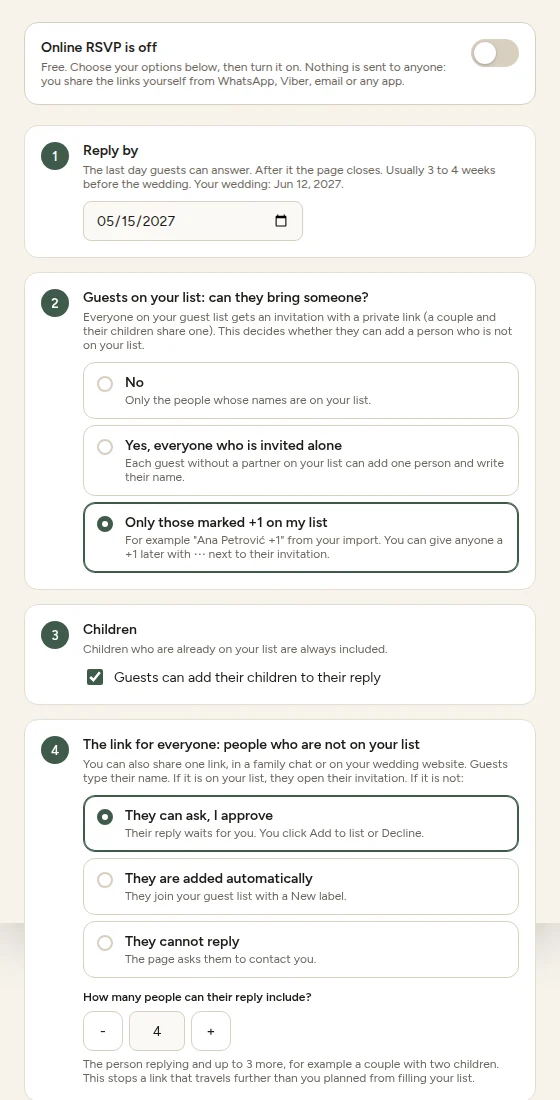
- Reply by: the last day guests can answer. After it the page closes.
- Guests on your list: can they bring someone? Everyone on your list gets an invitation with a private link. No means only the names on your list. Yes, everyone who is invited alone lets each guest without a partner add one person and write their name. Only those marked +1 on my list is for guests you imported as, for example, "Ana Petrović +1". You can also give one person a +1 later.
- Children: whether guests can add their children. Children already on your list are always included.
- The link for everyone: people who are not on your list. You can also share one link. Guests type their name, and if it is on your list they open their invitation. If it is not, they can ask and you approve, they are added automatically, or they cannot reply. You also choose how many people such a reply can include (4 by default), so a link that travels too far cannot fill your list.
- What guests answer: meal choices, allergies, up to six extra questions (a favorite song, a bus to the venue) and a note from you at the top of the page.
No guest list yet? Choose Let guests add themselves in the import window. Leave option 4 on They are added automatically (or approve each one), share the link for everyone, and your list fills itself as people reply.
Invitations: who replies together
seatings puts your guests into invitations by itself: a couple and their plus-one together, children with a parent who has the same surname, everyone else on their own. Each invitation has a private link, so guests never have to search for their name.
To change one, click ⋯ next to it. You can give someone their own invitation, add people from another invitation, or set how many extra guests they may bring (a plus-one they name themselves).
Send the links
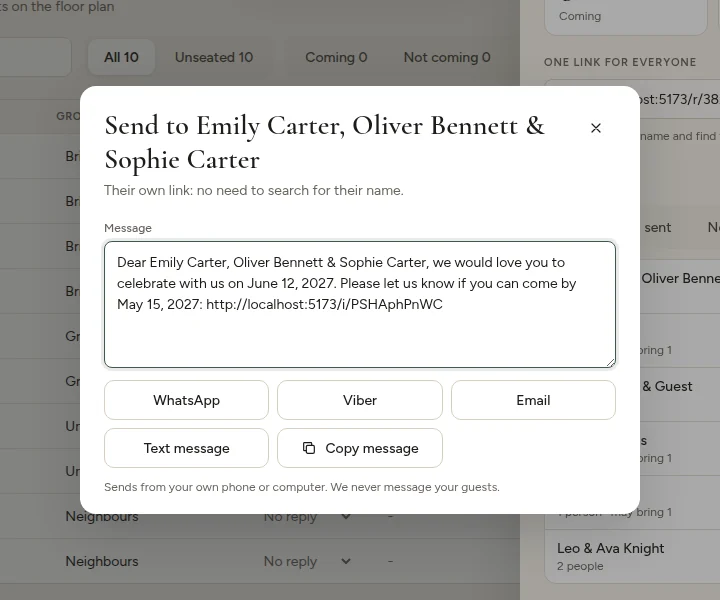
You send the links yourself, from your own phone or computer. We never message your guests.
- One by one: click Send next to an invitation, or Send one by one to go through every invitation that has not been sent yet.
- One link for everyone: share it in a family chat or on your wedding website. Guests type their first and last name and find their invitation.
Each message is ready to send in your wedding's language and you can edit it. Choose WhatsApp, Viber, Email, Text message or Copy message. On a phone, Share… opens every app you have.
What your guests see
Guests answer for everyone on their invitation: Joyfully accepts or Regretfully declines, a meal if you offer choices, and allergies or dietary needs. They can name their plus-one, add their children if you allow it, answer your extra questions and leave you a note. Until the reply-by date they can open the link again and change their answer.
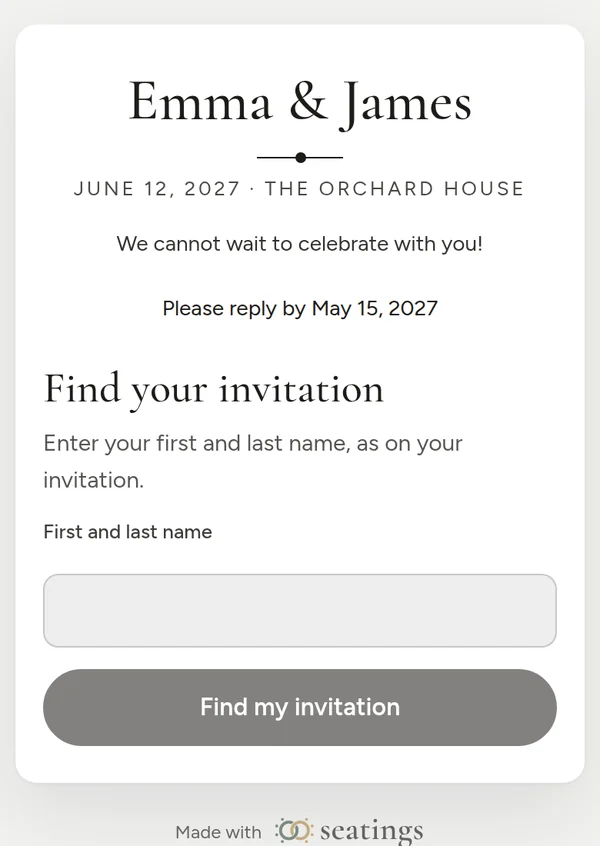
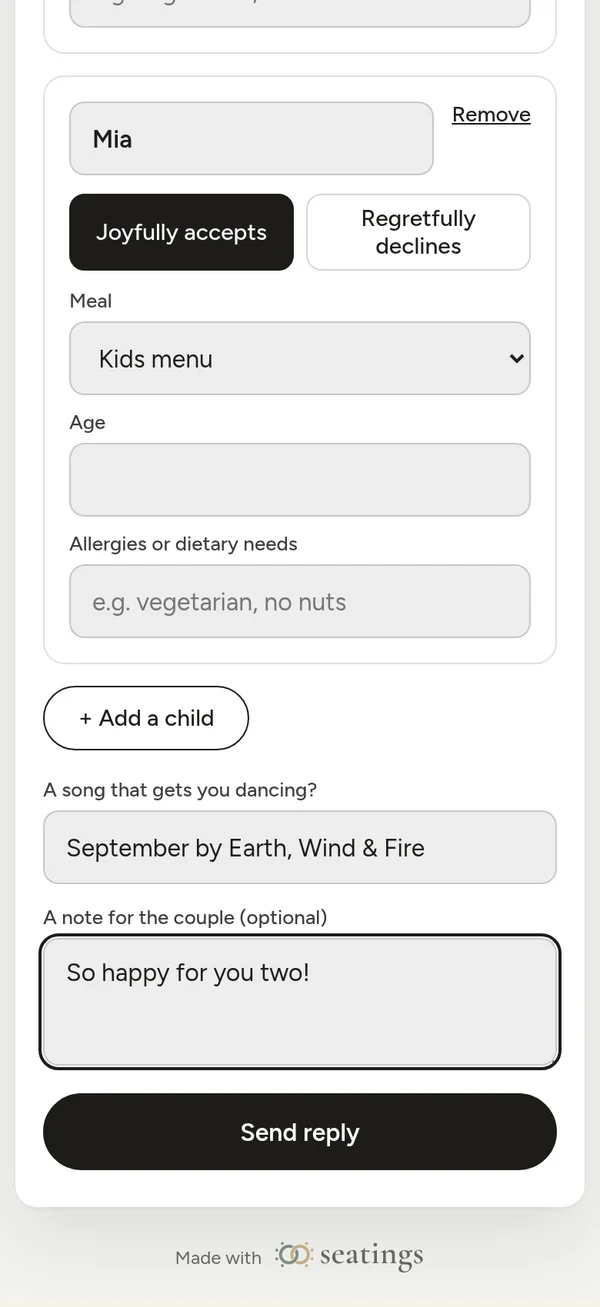
The page uses your print pack's language, fonts and colors. Change them in Print pack → Style.
Follow the replies
The RSVP panel shows how many people are coming (and how many children), who is not coming and who has not replied yet. Each invitation shows Not sent, Sent, Opened or the reply. Use the filters to find everyone who has not answered and send them a reminder with the same Send button.
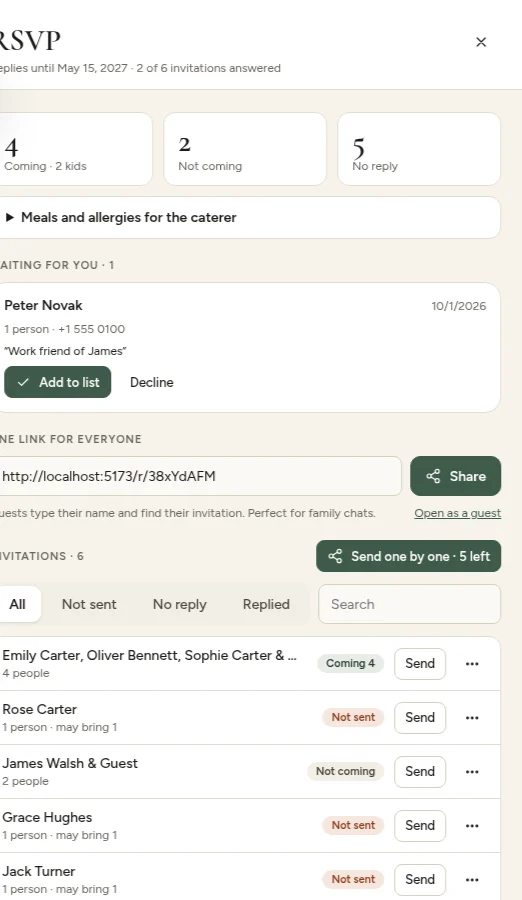
Under Meals and allergies for the caterer you see the count per meal and every allergy. Copy summary puts it on your clipboard, ready to send.
In your guest list
With RSVP on, the guest list gets an RSVP column and filters for Coming, Not coming and No reply. You can change an answer yourself, for example when someone tells you in person. Guests added through RSVP have a New label until you click it.
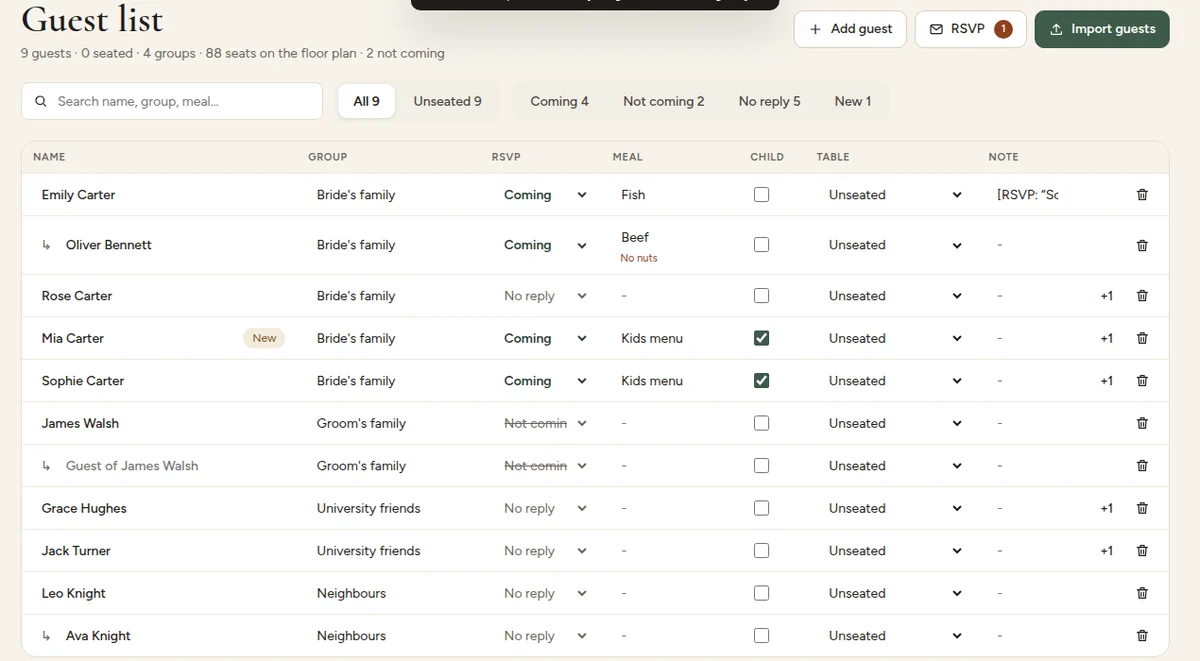
People who are not coming leave their seat and no longer count as unseated. AI seating only seats guests who are coming or have not answered yet. Extra answers and notes are added to the guest's note.
People who are not on your list
In option 4 choose what happens when someone who is not on your list finds no invitation under their name on the link for everyone:
- I approve them: their request waits under Waiting for you. Click Add to list or Decline.
- Add them automatically: they join your guest list with a New label.
- Only invited guests: the page asks them to contact you.
Each reply can include a limited number of people (4 by default, you choose), so a link that travels further than planned cannot fill your list.
Change options or turn it off
All options stay at the bottom of the RSVP panel under Options. The switch at the top turns RSVP off: the links stop working and the replies you have stay in your guest list. Turn it on again later and the same links work again.
Good to know
- After the reply-by date the page closes and asks guests to contact you directly.
- Answers arrive while the plan is open (about every 20 seconds) and when you open it again.
- Send invitations six to eight weeks before the wedding and ask for replies three to four weeks before. See our invitation timeline.